Kuaishou Video Editing Tools & Effects – Complete Guide
Mastering Kuaishou video editor capabilities unlocks creative potential for content creation on the platform. With 100+ Kuaishou effects, extensive Kuaishou filters, and professional editing tools, users can transform raw footage into engaging videos. This comprehensive guide explores every editing feature, from basic trimming to advanced AI-powered enhancements introduced in version 14.0.40. If you want to install the Latest Kuaishou APK Downloader free of cost.
Beijing Kuaishou Technology continuously updates its editing suite, with recent additions including AI-powered editing features and smart enhancement tools, 2K/4K export quality, and multilingual audio integration. Whether creating casual content or professional productions, understanding these tools maximizes creative output. If you prefer editing on a larger screen, check our Kuaishou PC download and emulator setup guide for Windows and Mac.
Kuaishou Built-In Video Editor Overview
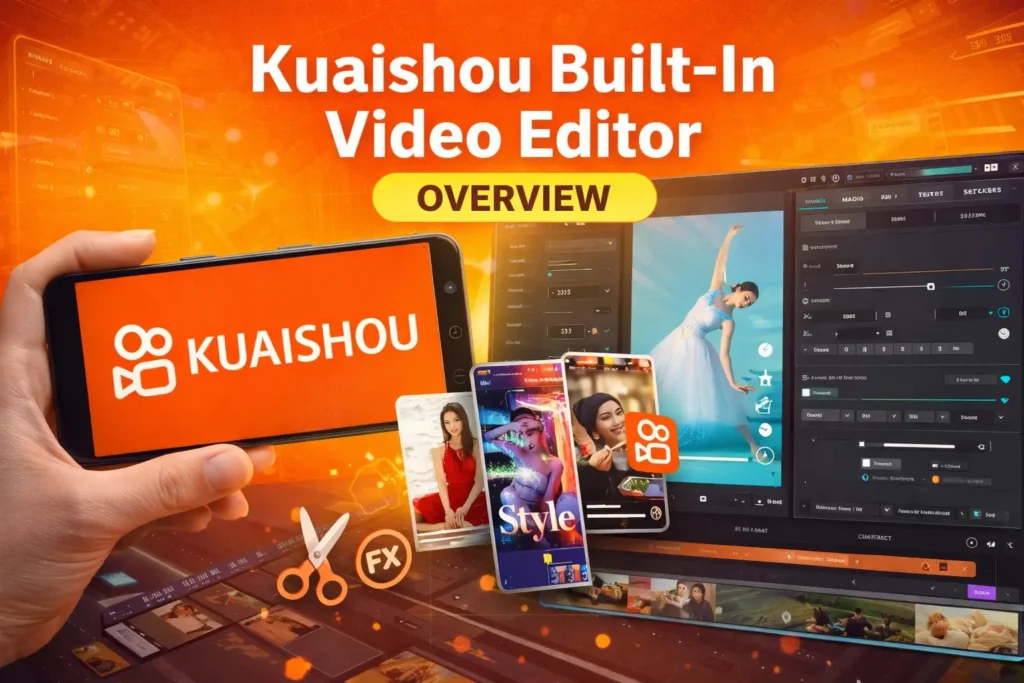
Editor Interface Layout
Editor Screen Components:
| Section | Location | Function |
|---|---|---|
| Preview Window | Center | View edited video |
| Timeline | Bottom | Clip arrangement & trimming |
| Tools Panel | Right side | Effects, filters, text |
| Playback Controls | Bottom center | Play, pause, scrub |
| Export Button | Top right | Save/publish video |
Navigation:
- Pinch to zoom timeline
- Drag clips to rearrange
- Tap tools for quick access
- Swipe for effect categories
Editing Capabilities
What You Can Do:
Basic Editing:
- ✂️ Trim and cut clips
- 🔗 Merge multiple videos
- ⏩ Adjust playback speed
- 🎵 Add music and audio
Advanced Features:
- 🎨 Apply effects and filters
- 📝 Insert text and stickers
- 🌈 Color grading
- 🎭 Green screen compositing
- 🤖 AI auto-enhancement
Professional vs Basic Tools
Tool Tiers:
| Feature | Basic (Free) | Advanced (Pro) |
|---|---|---|
| Effects | 30+ standard | 100+ premium |
| Filters | 20+ basic | 50+ professional |
| Resolution | Up to 1080p | Up to 4K |
| Transitions | 10 types | 30+ types |
| AI Tools | Limited | Full access |
Unlock Advanced:
- Complete account verification
- Reach follower milestones
- Subscribe to Creator Pro (optional)
- Use latest app version (14.0.40+)
How to Access Kuaishou Video Editor
Edit During Recording
Real-Time Editing:
- Tap create button (+) at bottom
- Hold record button to film
- Tap effects icon (while recording)
- Apply beauty filters or AR effects
- Continue recording with effects active
Live Editing Benefits:
- See effects immediately
- Faster workflow
- Less post-processing
- Real-time preview
Before accessing the video editor, make sure you have an active account. If you haven’t signed up yet, follow our complete Kuaishou registration guide to create your account step-by-step.
Edit After Recording
Post-Recording Workflow:
- Record video clips
- Tap checkmark when done
- Editor opens automatically
- Apply edits, effects, filters
- Tap Next → Publish
This Method Offers:
- Full control over effects
- Precise timing adjustments
- Multiple effect layers
- Save drafts for later
Edit Uploaded Videos
Import & Edit Existing Videos:
- Tap create (+)
- Select “Upload”
- Choose video from gallery
- Edit using full tool suite
- Export or publish
Supported Formats:
- MP4, MOV, AVI
- Up to 4K resolution
- Max 15 minutes length
- Multiple clips combinable
Do You Need Third-Party Editing Apps for Kuaishou?
Not necessarily. In 2026, Kuaishou’s built-in editor is powerful enough for most creators. You can trim clips, add music, apply filters, create transitions, add subtitles, and even use AI enhancements without installing extra apps.
However, some professional creators still use external editing apps for advanced cinematic editing and color grading.
Popular apps used with Kuaishou include:
• CapCut
• VN Video Editor
• Canva
• Adobe Premiere Rush
• InShot
For beginners, the built-in Kuaishou editor is usually more than enough.
Essential Editing Tools
Trim & Cut Videos
Basic Trimming:
Step-by-Step:
- Tap clip on timeline
- Drag yellow handles at ends
- Adjust start/end points
- Tap checkmark to confirm
Cut/Split Clips:
- Position playhead where to cut
- Tap scissors icon
- Split creates two clips
- Delete unwanted sections
Merge Multiple Clips
Combine Videos:
Method 1: During Upload
- Select multiple videos (2-10)
- Automatic sequential arrangement
- Rearrange by dragging
Method 2: In Timeline
- Add first clip
- Tap “+” to add more
- Drag to reorder
- Adjust transitions between clips
Merge Settings:
- Auto-adjust aspect ratio
- Match color grading (optional)
- Smooth transitions
- Synchronized audio
Adjust Speed (Slow Motion/Fast Forward)
Speed Control:
| Speed | Effect | Use Case |
|---|---|---|
| 0.5x | Slow motion | Dramatic moments |
| 0.75x | Slight slow | Emphasis |
| 1x | Normal | Default |
| 2x | Fast forward | Time-lapse |
| 3x | Very fast | Quick transitions |
How to Adjust:
- Select clip
- Tap “Speed” icon
- Drag slider (0.5x – 3x)
- Preview changes
- Apply
Add Background Music
Audio Features:
Music Library Access:
- 10,000+ licensed tracks
- Trending sounds
- Genre categories
- Duration matching
Add Music Steps:
- Tap music note icon
- Browse or search tracks
- Preview with your video
- Adjust volume levels
- Trim to fit video length
Audio Options:
- Fade in/out effects
- Volume ducking (lowers music during speech)
- Original audio preservation
- Mix multiple audio tracks
Kuaishou Effects Library
Beauty Effects
Face Enhancement:
Available Beauty Tools:
| Effect | Function | Intensity |
|---|---|---|
| Smooth Skin | Reduce blemishes | 0-100% |
| Brighten | Lighten skin tone | 0-100% |
| Slim Face | Face reshaping | 0-100% |
| Big Eyes | Enlarge eyes | 0-100% |
| Whitening | Teeth whitening | 0-100% |
How to Apply:
- Tap beauty wand icon
- Choose effect type
- Adjust intensity slider
- Enable “Smart Beauty” for auto-adjust
- Save preset for future use
AR Face Filters
Augmented Reality Effects:
Categories:
- 🐰 Animal faces (cat, bunny, dog)
- 👑 Accessories (crowns, glasses, hats)
- 💄 Makeup looks (lipstick, eyeshadow)
- ✨ Sparkles and magic effects
- 🎭 Character transformations
Popular AR Filters:
- Cute animal ears + whiskers
- Flower crown with soft glow
- Retro sunglasses with frame
- Galaxy makeup with stars
- Age transformation filter
Body Effects
Full-Body Modifications:
Body Tools:
- Height adjustment
- Body slimming
- Posture correction
- Motion tracking effects
- Virtual clothing try-on
How to Use:
- Record full-body shot
- Select body effect
- AI detects body outline
- Apply modifications
- Real-time preview
Background Effects
Scene Changes:
Background Options:
- Blur background (portrait mode)
- Replace with image/video
- Dynamic backgrounds (particles, animations)
- Green screen removal
- Virtual studio backgrounds
Blur Strength:
- Light blur: 20%
- Medium blur: 50%
- Heavy blur: 80%
- Bokeh effect: circular blur
Kuaishou Filters Collection
Color Filters
Color Grading Presets:
| Filter | Color Tone | Mood |
|---|---|---|
| Warm | Orange/yellow tint | Cozy, nostalgic |
| Cool | Blue tint | Modern, calm |
| Vibrant | Saturated colors | Energetic |
| Muted | Desaturated | Artistic |
| B&W | Black and white | Classic |
Intensity Adjustment:
- 0% = Original colors
- 50% = Balanced filter
- 100% = Full filter strength
Vintage Filters
Retro Aesthetics:
Popular Vintage Styles:
- 📹 VHS Tape (1980s video look)
- 📷 Film Camera (grainy texture)
- 🎞️ Old Movie (sepia with scratches)
- 📺 CRT Monitor (scan lines)
- 🌅 Polaroid (instant photo look)
Customization:
- Add film grain intensity
- Adjust vignette darkness
- Color shift controls
- Light leak overlays
Mood Filters
Emotion-Based Filters:
Mood Categories:
- ☀️ Happy (bright, warm)
- 🌙 Dreamy (soft, hazy)
- 🔥 Dramatic (high contrast)
- 🌊 Calm (cool, muted)
- 💜 Romantic (pink/purple tones)
Smart Filters:
- Auto-detect scene type
- Suggest matching filter
- Adjust based on lighting
- Maintain skin tones
Custom Filter Creation
Make Your Own Filters:
Steps:
- Start with base video
- Adjust saturation (+/- 50)
- Modify brightness/contrast
- Add color tint overlay
- Set vignette strength
- Save as custom preset
Advanced Controls:
- RGB curves adjustment
- HSL (Hue, Saturation, Lightness)
- Temperature and tint
- Sharpness levels
Advanced Editing Features
Green Screen (Chroma Key)
Background Replacement:
Requirements:
- Green or blue solid background
- Even lighting (no shadows)
- Subject separated from background
How to Use:
- Record with green screen
- Tap “Chroma Key” in effects
- Select green color to remove
- Adjust tolerance slider
- Add replacement background
- Fine-tune edges
Tips:
- Use proper green screen material
- Avoid green in clothing
- Consistent lighting crucial
- Feather edges for natural look
Picture-in-Picture
Multi-Layer Videos:
PiP Setup:
- Add main video to timeline
- Tap “PiP” button
- Select overlay video/image
- Resize and position
- Adjust opacity if needed
- Set duration
Use Cases:
- Reaction videos
- Tutorial demonstrations
- Before/after comparisons
- Multi-angle coverage
Transitions
Scene Changes:
Transition Types:
| Transition | Effect | Best For |
|---|---|---|
| Fade | Gradual blend | Slow pace |
| Wipe | Directional reveal | Dynamic |
| Zoom | Scale transition | Emphasis |
| Spin | Rotation effect | Playful |
| Glitch | Digital distortion | Modern |
Apply Transitions:
- Tap between two clips
- Select transition type
- Adjust duration (0.3-2 seconds)
- Preview result
- Apply to all (optional)
Text & Stickers
Overlay Elements:
Text Tools:
- 50+ font styles
- Color customization
- Outline and shadow
- Animation presets
- Timing control
Add Text:
- Tap “T” icon
- Type your text
- Choose font and color
- Position on screen
- Set display duration
- Add animation (optional)
Sticker Library:
- 1000+ animated stickers
- Emoji collections
- Trending memes
- Holiday themed
- Custom upload
Auto Captions & Subtitles
Kuaishou now supports automatic subtitle generation for many languages. This feature helps creators improve watch time, accessibility, and engagement.
How to Enable Auto Captions:
1. Open the video editor
2. Tap “Text” or “Captions”
3. Select “Auto Generate”
4. Wait a few seconds for speech detection
5. Edit subtitle mistakes manually
Benefits of Auto Captions:
✓ Better accessibility
✓ Improved viewer retention
✓ Easier understanding without sound
✓ More professional-looking videos
AI-Powered Tools (Kling AI 3.0)
AI Video Generation
Create Videos from Text:
New in Version 14.0.40:
- Text-to-video conversion
- 15-second AI videos
- Multilingual narration
- Professional scene composition
How to Use:
- Tap “AI Video” in create menu
- Enter text description
- Choose style (realistic/cartoon)
- Select language for audio
- Generate (takes 30-60 seconds)
- Edit generated video
Example Prompts:
- “Person walking on beach at sunset”
- “City skyline time-lapse, neon lights”
- “Chef cooking in modern kitchen”
Auto-Enhancement
One-Tap Improvements:
AI Enhancements:
- ✨ Auto color correction
- 🔊 Audio noise reduction
- 📹 Stabilization
- 🌟 Brightness optimization
- 🎨 Smart composition
Process:
- Select video clip
- Tap “AI Enhance”
- Wait for processing (10-30 seconds)
- Compare before/after
- Accept or adjust manually
AI Learning:
- Analyzes 416 million daily videos
- Learns trending styles
- Adapts to content type
- Improves over time
Smart Cutout
Object Removal/Isolation:
Features:
- Remove backgrounds automatically
- Isolate subjects precisely
- Multi-object selection
- Hair detail preservation
Use Cases:
- Product showcase videos
- Green screen alternative
- Focus on subject
- Creative compositing
Audio Editing Features
Voice Effects
Vocal Modifications:
Available Effects:
- 🎙️ Robot voice
- 👶 Child voice
- 🦸 Deep/masculine
- 🧚 High-pitched/feminine
- 👻 Echo/reverb
- 🐿️ Chipmunk (fast)
Apply Voice Effect:
- Record video with audio
- Tap “Voice” in audio menu
- Select effect preset
- Adjust intensity
- Preview and apply
Sound Effects Library
Audio Enhancements:
Categories:
- 🎵 Music stingers
- 💥 Impact sounds
- 🎉 Celebration effects
- 🚗 Environmental sounds
- 😂 Comedy sounds
Insert Sound Effect:
- Position playhead on timeline
- Tap “Sound FX”
- Browse categories
- Preview effects
- Add to timeline
- Adjust volume and timing
Audio Mixing
Multi-Track Audio:
Tracks:
- Original video audio
- Background music
- Voice-over narration
- Sound effects
- Ambient audio
Mixing Controls:
- Position playhead on timeline
- Tap “Sound FX”
- Browse categories
- Preview effects
- Add to timeline
- Adjust volume and timing
Tips for Better Video Editing
Composition Guidelines
Visual Best Practices:
Rule of Thirds:
- Divide screen into 9 sections
- Place subjects at intersections
- Creates balanced composition
Lighting:
- Natural light = best quality
- Avoid harsh shadows
- Golden hour filming (sunrise/sunset)
- Ring lights for indoor shooting
Framing:
- Leave headroom (space above head)
- Eye-level positioning
- Stable shots (use tripod)
- Avoid camera shake
Effect Usage Best Practices
Don’t Overdo It:
Good:
- 1-2 effects per video
- Subtle filter strength (50-70%)
- Consistent style throughout
- Effects that enhance content
Avoid:
- Mixing too many filters
- 100% effect intensity
- Excessive transitions
- Distracting AR effects
Storytelling First:
- Effects support story, not replace it
- Use effects purposefully
- Match effect to mood
- Keep viewer focused on message
Export Settings
Quality Optimization:
Recommended Settings:
| Purpose | Resolution | Bitrate | FPS |
|---|---|---|---|
| Standard | 1080p | Auto | 30 |
| High Quality | 1080p | High | 60 |
| Professional | 4K | Maximum | 60 |
| Data Saving | 720p | Low | 30 |
Export Steps:
- Complete editing
- Tap “Export/Next”
- Select quality preset
- Choose save location
- Tap “Export”
- Wait for processing (30-180 seconds)
File Size Guide:
- 1-minute 1080p video: ~50-100MB
- 1-minute 4K video: ~150-250MB
- Lite version limits: 720p max
BEST SETTINGS FOR VIRAL VIDEOS
Best Export Settings for Kuaishou Videos in 2026
Using the right export settings can improve video quality and reduce compression after uploading.
Recommended Settings:
• Resolution: 1080p
• Frame Rate: 60 FPS
• Format: MP4
• Aspect Ratio: 9:16 vertical
• Bitrate: Medium to High
• Duration: 15–60 seconds for better engagement
Tips:
✓ Avoid blurry exports
✓ Use good lighting before editing
✓ Keep transitions simple
✓ Add captions for higher watch time
✓ Use trending music when possible
Frequently Asked Questions
Conclusion – Master Kuaishou Editing
Kuaishou video editor provides professional-grade tools accessible to all users, from basic Kuaishou filters to advanced Kuaishou effects powered by Kling AI 3.0. Mastering these features transforms ordinary footage into engaging content that resonates with millions of active users worldwide.
Key Takeaways:
✅ 100+ Effects & 50+ Filters available for creative expression
✅ AI Tools automate enhancements and generate video content
✅ Professional Features include green screen, PiP, transitions
✅ Most Tools Free with full functionality at no cost
✅ Regular Updates bring new effects and capabilities
Getting Started: Begin with basic tools (trim, filters, music), gradually explore advanced features (AI enhancement, effects), and develop personal editing style through experimentation. Quality editing elevates content visibility and audience engagement.
Whether you’re editing casual videos for fun or trying to grow as a creator, Kuaishou’s built-in editing tools are more powerful than most users expect. Start with simple edits, experiment with filters and captions, and gradually test advanced features as your content improves.
The best way to learn is by creating consistently and testing what your audience enjoys watching most.