
Kuaishou PC Download—Windows & Mac Guide 2026 | BlueStacks Setup
Looking to enjoy Kuaishou on your computer? While Beijing Kuaishou Technology doesn’t offer an official desktop application, you can easily run this popular Chinese short-form video platform on your PC using Android emulators. This guide walks you through every method to get the Kuaishou PC download working smoothly on both Windows and Mac systems.
Whether you’re a content creator wanting better editing tools, a live streamer seeking enhanced performance, or simply prefer watching videos on a larger screen, running Kuaishou on a computer opens new possibilities for engagement with this massive social platform.
How to Download Kuaishou for PC
Since there’s no native Kuaishou desktop version, Android emulators provide the best solution. These programs create a virtual Android environment on your computer, letting you install and run the app just like on a phone. If you need the mobile version first, Kuaishou APK download for Android is available with the latest updates and full features.
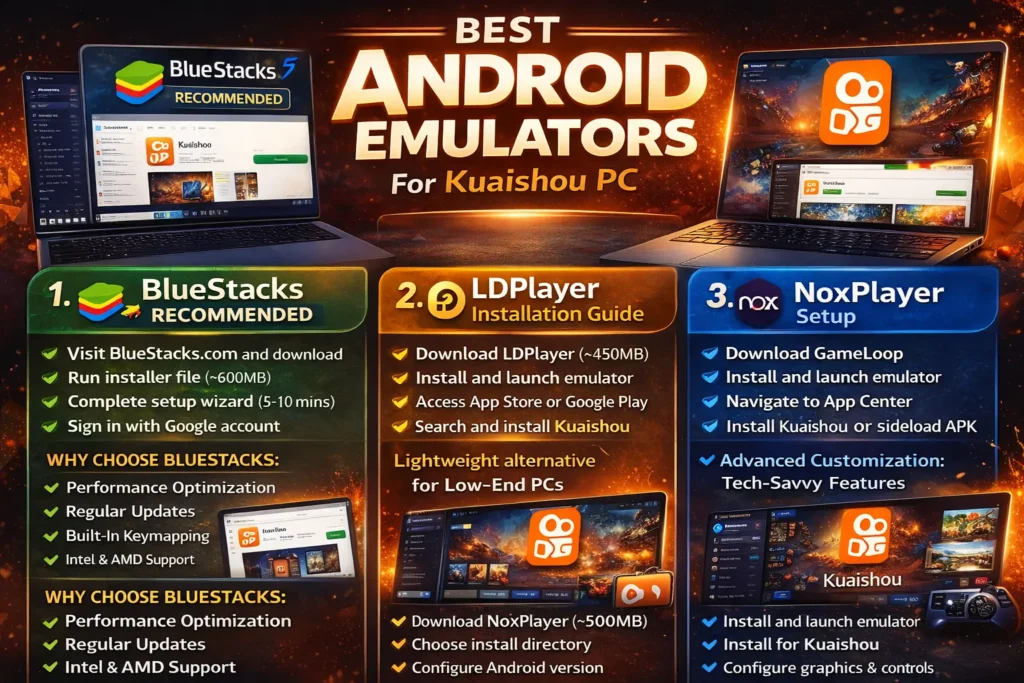
Method 1: Using BlueStacks Emulator (Recommended)
BlueStacks remains the most popular choice for Kuaishou emulator users thanks to its stability and user-friendly interface.
Installation Steps:
- Visit the official BlueStacks website and download the latest version (BlueStacks 5.21 or newer – latest stable version in 2026, optimized for Intel 12th/13th Gen and AMD Ryzen processors)
- Run the installer file (approximately 700MB download, size may vary depending on updates)
- Complete the setup wizard – takes about 5-10 minutes
- Sign in with your Google account when prompted
- Open Google Play Store within BlueStacks
- Search for “Kuaishou” or “快手”
- Click Install and wait for the download to complete
- Launch Kuaishou from the BlueStacks home screen
Why Choose BlueStacks:
- Excellent performance optimization
- Regular updates and bug fixes
- Built-in keymapping for controls
- Supports both Intel and AMD processors
- Optimized for modern CPUs (Intel 12th/13th Gen & AMD Ryzen)
Method 2: LDPlayer Installation Guide
LDPlayer offers a lightweight alternative, perfect for computers with limited resources.
Quick Setup Process:
- Download LDPlayer from the official site (around 450MB)
- Install the emulator on your PC
- Launch LDPlayer and complete initial setup
- Access the built-in app store or Google Play
- Search and install Kuaishou
- Configure display settings for optimal viewing
Method 3: NoxPlayer Setup
NoxPlayer provides advanced customization options for tech-savvy users.
Installation Overview:
- Download NoxPlayer installer (approximately 500MB)
- Run setup and choose installation directory
- Launch emulator and configure Android version (recommend Android 7 or higher)
- Install Kuaishou through Play Store or manual APK installation
- Adjust performance settings based on your PC specifications
Method 4: GameLoop Emulator
While GameLoop focuses primarily on mobile gaming, it handles Kuaishou on computer surprisingly well.
Setup Guide:
- Download GameLoop from the official website
- Install and launch the emulator
- Navigate to the app center
- Search for Kuaishou or sideload the APK
- Configure controls and graphics settings
LDPlayer excels at running multiple instances simultaneously, making it ideal for users managing several Kuaishou accounts.
Method 5: Using Windows Subsystem for Android (WSA)
Windows 11 users can run Kuaishou without a traditional emulator using Windows Subsystem for Android (WSA). This provides better performance and lower resource usage.
Setup Guide:
Enable Windows Subsystem for Android from Windows Features
Install Amazon Appstore from Microsoft Store
Sign in with Amazon account
Install Kuaishou (if available) or sideload APK manually
Launch and use Kuaishou like a native app
Why Use WSA:
No heavy emulator required
Better performance on modern PCs
Lower RAM usage
More stable on Windows 11
Limitations:
Only available on Windows 11
Limited app availability in some regions
Manual APK installation may be required
What is the Kuaishou PC version?
Understanding Kuaishou Desktop Experience
The Kuaishou for PC experience refers to running the Android application through emulation software. Unlike platforms like YouTube or Facebook that offer native desktop websites, Kuaishou primarily operates as a mobile-first platform.
Running Kuaishou on your computer provides several advantages:
- Larger screen for video viewing and editing
- Easier content creation using keyboard and mouse
- Better multitasking capabilities
- Enhanced live streaming quality with PC webcam and microphone
Official PC App vs Android Emulator
Beijing Kuaishou Technology hasn’t released an official Windows or Mac application. The company focuses development resources on their mobile apps (both Kuaishou for China and Kwai for international markets).
Current Options:
Method | Availability | Features |
|---|---|---|
Official PC App | Not Available | N/A |
Android Emulator | Available | Full mobile features |
Web Browser | Limited | View-only access |
Chrome Extensions | Unofficial | Varies |
Best Android Emulators for Kuaishou PC
BlueStacks – Best Overall Performance
Specifications:
- Latest Version: BlueStacks 5.10+
- RAM Usage: 2-4GB
- Disk Space: 5GB minimum
- Compatibility: Windows 7/8/10/11, macOS
Strengths:
- Optimized graphics rendering for video playback
- Smooth scrolling through Kuaishou feed
- One-click installation from Google Play
- Automatic keymapping for navigation
Best For: Users wanting the most stable Kuaishou Windows download experience
LDPlayer – Lightweight & Fast
Key Features:
- Multiple instance manager (run 2+ Kuaishou accounts)
- Lower resource consumption than BlueStacks
- Customizable keyboard controls
- Built-in screen recorder
Performance Metrics:
- Boot time: 15-20 seconds
- RAM usage: 1.5-3GB
- CPU load: Moderate
Ideal For: Computers with 4GB RAM or less
NoxPlayer – Advanced Customization
Advanced Options:
- Root access for advanced users
- Macro recording capabilities
- GPS location spoofing
- Custom resolution settings
Technical Specifications:
- Android versions: 5, 7, 9 available
- OpenGL/DirectX rendering modes
- Script automation support
Best For: Power users who want complete control
GameLoop—Gaming Focused
Highlights:
- Optimized for Tencent apps
- Good graphics performance
- Lower CPU temperature during use
Limitations:
- Fewer customization options
- Primarily designed for games, not social apps
System Requirements for Kuaishou on PC
Minimum PC Requirements
To run Kuaishou PC emulator smoothly, your computer needs:
Windows PC:
- OS: Windows 10 or Windows 11 (64-bit)
- Processor: Intel/AMD dual-core CPU
- RAM: 4GB minimum
- Graphics: Integrated graphics (Intel HD 4000+)
- Storage: 10GB free space
- Virtualization: Enabled in BIOS
Mac Computer:
- OS: macOS 10.12 Sierra or newer
- Processor: Intel Core i3 or M1/M2 chip
- RAM: 4GB minimum
- Storage: 10GB free space
Recommended Specifications
For optimal performance watching videos and live streams:
- RAM: 8GB or more
- Processor: Intel Core i5/AMD Ryzen 5 or better
- Graphics: Dedicated GPU (NVIDIA/AMD)
- Storage: SSD with 20GB+ free space
- Internet: 10 Mbps+ for HD streaming
Windows vs Mac Compatibility
Feature | Windows | macOS |
|---|---|---|
BlueStacks Support | Excellent | Good (Intel Macs) |
LDPlayer Support | Excellent | Not Available |
NoxPlayer Support | Excellent | Available |
GameLoop Support | Excellent | Not Available |
Performance | Better overall | Good on M1/M2 chips |
Note: Mac users with M1/M2 chips may experience compatibility issues with some emulators. BlueStacks offers the best macOS support.
Step-by-Step: Install Kuaishou on Windows PC
Pre-Installation Checklist
Before starting your Kuaishou laptop download, verify:
✓ Windows is 64-bit (check in System Settings) ✓ Virtualization enabled in BIOS (required for emulators) ✓ At least 15GB free disk space ✓ Antivirus won’t block emulator installation ✓ Stable internet connection (downloads are 400-600MB)
Enable Virtualization:
- Restart PC and enter BIOS (usually F2, F10, or Delete key)
- Find “Virtualization Technology” or “VT-x” setting
- Enable the option
- Save and exit BIOS
BlueStacks Installation Process
Detailed Steps:
1. Download BlueStacks
Visit bluestacks.com
Click “Download BlueStacks 5”
Save installer to your desktop
2. Run Installer
Double-click the downloaded file
Accept UAC prompt (User Account Control)
Choose installation location (C drive recommended)
Click Install Now
3. Initial Setup
BlueStacks will download required components (5-10 minutes)
Application launches automatically when ready
Complete the welcome tutorial.
4. Sign In to Google
Click “Sign in” when prompted
Enter your Google account credentials
Accept permissions for Play Store access
Kuaishou App Setup on Emulator
Installing Kuaishou:
- Open Google Play Store in BlueStacks
- Search for “Kuaishou” (快手)
- Verify the developer: Beijing Kuaishou Technology
- Click Install button
- Wait for download (app is approximately 98MB)
- Grant requested permissions when asked
- Launch Kuaishou from home screen
Alternative Method – Manual APK:
If Play Store doesn’t work:
- Download Kuaishou APK from trusted source (APKMirror, APKPure)
- Verify package name: com.smile.gifmaker
- Drag APK file into BlueStacks window
- Click Install when prompted
- Wait for installation to complete
Account Configuration
First-Time Setup:
- Launch Kuaishou app
- Choose sign-up method (phone number, WeChat, QQ)
- Enter verification code if using phone
- Complete profile setup (username, avatar)
- Adjust privacy settings in preferences
- Grant camera/microphone access if creating content
How to Install Kuaishou on Mac Computer
Mac-Compatible Emulators
Available Options for macOS:
1. BlueStacks for Mac (Recommended)
Supports Intel and M1/M2 chips
Best optimization for macOS
Regular updates
2. NoxPlayer Mac Version
Intel Macs only
Fewer features than Windows version
Decent performance
3. Android Studio Emulator (Advanced)
Developer tool repurposed for apps
Requires technical knowledge
Full Android environment
Installation Steps for macOS
BlueStacks on Mac:
- Download BlueStacks Mac installer (.dmg file)
- Open the .dmg and drag BlueStacks to Applications
- Launch BlueStacks from Applications folder
- Grant accessibility permissions in System Preferences
- Complete Google account sign-in
- Install Kuaishou from Play Store
M1/M2 Mac Considerations:
Apple Silicon Macs run emulators through Rosetta 2 translation:
- Slightly reduced performance compared to Intel
- Some emulators may crash on initial launch
- Update to latest macOS version for best compatibility
Performance Optimization Tips
Boost Kuaishou Mac Performance:
1. Allocate More Resources
Open BlueStacks Settings
Navigate to Performance tab
Increase CPU cores (2-4 cores)
Raise RAM allocation (4GB recommended)
2. Adjust Graphics Settings
Switch to Metal rendering (Mac-specific)
Lower display resolution if laggy
Disable animations in emulator settings
3. Close Background Apps
Quit unnecessary applications
Check Activity Monitor for resource usage
Free up RAM before launching emulator
Kuaishou PC Features & Functionality
Video Creation on Desktop
Content Creation Advantages:
Running Kuaishou desktop version through emulators provides creator benefits:
Import videos directly from PC folders
Use keyboard shortcuts for faster editing
Preview content on larger screen
Access advanced editing tools with mouse precision
Export higher quality videos
Workflow Enhancement:
Record or import video footage on PC
Transfer to emulator’s shared folder
Edit in Kuaishou with enhanced controls
Add filters, music, and effects
Publish directly from desktop
Live Streaming from PC
Broadcasting Setup:
Configure your Kuaishou on computer for streaming:
Connect USB webcam or use built-in laptop camera
Configure emulator camera settings
Set up external microphone for better audio
Test stream quality before going live
Use PC’s stronger hardware for encoding
Benefits Over Mobile Streaming:
Better camera quality options
Stable internet via Ethernet
Longer battery life (no phone drain)
Easy multitasking while streaming
Keyboard & Mouse Controls
Default Keymapping:
Action | Key/Mouse |
|---|---|
Scroll Feed | Mouse wheel / Arrow keys |
Like Video | Left click / L key |
Comment | C key |
Share | S key |
Back | Esc key |
Search | Ctrl + F |
Custom Controls: Most emulators let you remap keys. Configure shortcuts for:
- Quick video saving
- Rapid comment posting
- Faster navigation between sections
Optimizing Kuaishou Performance on PC
Graphics Settings Configuration
Emulator Graphics Optimization:
1. Choose Rendering Mode
DirectX: Better compatibility (Windows)
OpenGL: Lower resource usage
Metal: Best for Mac
2. Resolution Adjustment
Default: 1920×1080 (Full HD)
Lower to 1280×720 if laggy
Match your PC monitor resolution
3. Frame Rate Settings
Set to 60 FPS for smooth scrolling
Reduce to 30 FPS on older computers
Enable VSync to prevent screen tearing
RAM Allocation Tips
Memory Management:
Allocate RAM based on your system:
| Total PC RAM | Allocate to Emulator |
| 4GB | 2GB maximum |
| 8GB | 3-4GB |
| 16GB | 6-8GB |
| 32GB+ | 8-12GB |
Steps to Allocate:
- Close emulator completely
- Open emulator settings/preferences
- Find Performance or Advanced tab
- Adjust RAM slider
- Restart emulator to apply
Troubleshooting Common PC Issues
Emulator Won’t Launch
Error: “Virtualization is disabled”
Fix:
Restart PC and enter BIOS
Enable Intel VT-x or AMD-V
Save changes and reboot
Try launching emulator again
Error: “Graphics driver outdated”
Fix:
Update GPU drivers to latest version
Switch emulator rendering mode
Try different emulator (BlueStacks vs NoxPlayer)
Kuaishou Not Running Smoothly in Emulator
If the latest Kuaishou lags in your emulator, try installing an older version like v11.8.40 which is lighter and runs better on mid-range PCs.
Kuaishou Not Installing
Play Store Download Stuck
Solutions:
Clear Play Store cache
Sign out and back into your Google account. Try manual APK installation instead
Check internet connection stability
Error: “App not compatible”
Fix:
Update emulator to latest version
Change Android version in emulator settings
Download older Kuaishou APK version
Login Problems
Can’t Sign In with Phone Number
Workaround:
Use WeChat or QQ login instead
Try signing in on mobile first
Then sign in on PC with same credentials
Contact Kuaishou support if persistent
Verification Code Not Received
Solutions:
Check if phone number includes country code (+86 for China)
Wait 60 seconds before requesting new code
Try alternative sign-in method
Video Playback Issues
Videos Won’t Load or Buffer Constantly
Fixes:
Test internet speed (need 5+ Mbps)
Lower video quality in Kuaishou settings
Allocate more RAM to emulator
Close other bandwidth-heavy applications
Try different server region if using VPN
Audio Out of Sync
Solutions:
Update emulator to latest version
Restart Kuaishou app
Clear app cache and data
Reinstall if problem continues
PC vs Mobile: Which is Better?
Comparison Analysis:
Aspect | Kuaishou on PC | Kuaishou on Mobile |
|---|---|---|
Screen Size | Larger, better for viewing | Smaller, portable |
Content Creation | Keyboard/mouse precision | Quick, spontaneous |
Live Streaming | Better quality, stable | More convenient |
Performance | Hardware dependent | Optimized for mobile |
Portability | Requires computer | Use anywhere |
Battery Life | No battery drain | Limited by phone |
Multitasking | Excellent | Limited |
Updates | Via emulator | Direct from store |
Best Use Cases:
Choose PC When:
Editing longer videos
Broadcasting professional live streams
Managing multiple accounts
Analyzing content performance
Watching videos for extended periods
Choose Mobile When:
Capturing spontaneous moments
Posting quick updates
Using on the go
Accessing all features seamlessly
Participating in trending challenges
Pros & Cons
Pros
- Bigger screen
- Better controls
- Improved streaming
Cons
- Requires emulator
- Higher RAM usage
- No official desktop app
Is Kuaishou APK Safe?
If you Downloading Kuaishou APK from third-party websites can be risky if the source is not trusted.
Safety Tips:
Only download APK files from trusted sites like Kuaiapkdownload.com
Avoid mod APKs claiming “no watermark” or “premium unlocked”
Always scan APK files with antivirus before installing
Check app permissions before granting access
Using official sources like Google Play Store inside emulators is always the safest option.
Frequently Asked Questions
Conclusion – Best Way to Use Kuaishou on PC in 2026
While Beijing Kuaishou Technology hasn’t developed a native desktop application, Android emulators provide an excellent solution for Kuaishou PC download needs. BlueStacks emerges as the top recommendation for most users, offering stability, performance, and ease of use.
Quick Recommendations:
- Best Overall: BlueStacks for balanced performance and features
- Budget PCs: LDPlayer for lower resource usage
- Power Users: NoxPlayer for advanced customization
- Mac Users: BlueStacks (only reliable Mac option)
The Kuaishou on computer experience enhances content creation, live streaming, and video consumption through larger screens, better controls, and superior multitasking. Content creators particularly benefit from keyboard shortcuts, mouse precision, and the ability to import media directly from PC storage.
Remember to keep your emulator updated, allocate appropriate system resources, and verify APK authenticity when manually installing. With proper setup, you’ll enjoy Kuaishou’s full feature set on your desktop or laptop.
Ready to start? Download BlueStacks, follow the installation guide above, and begin exploring China’s vibrant short-video community from the comfort of your computer.